Slack
Last updated: October 23, 2026
Slack and Kyppo meet in three ways: alerts for you, optional project channel updates, and a slash command to look up tickets without leaving Slack.
Personal alerts
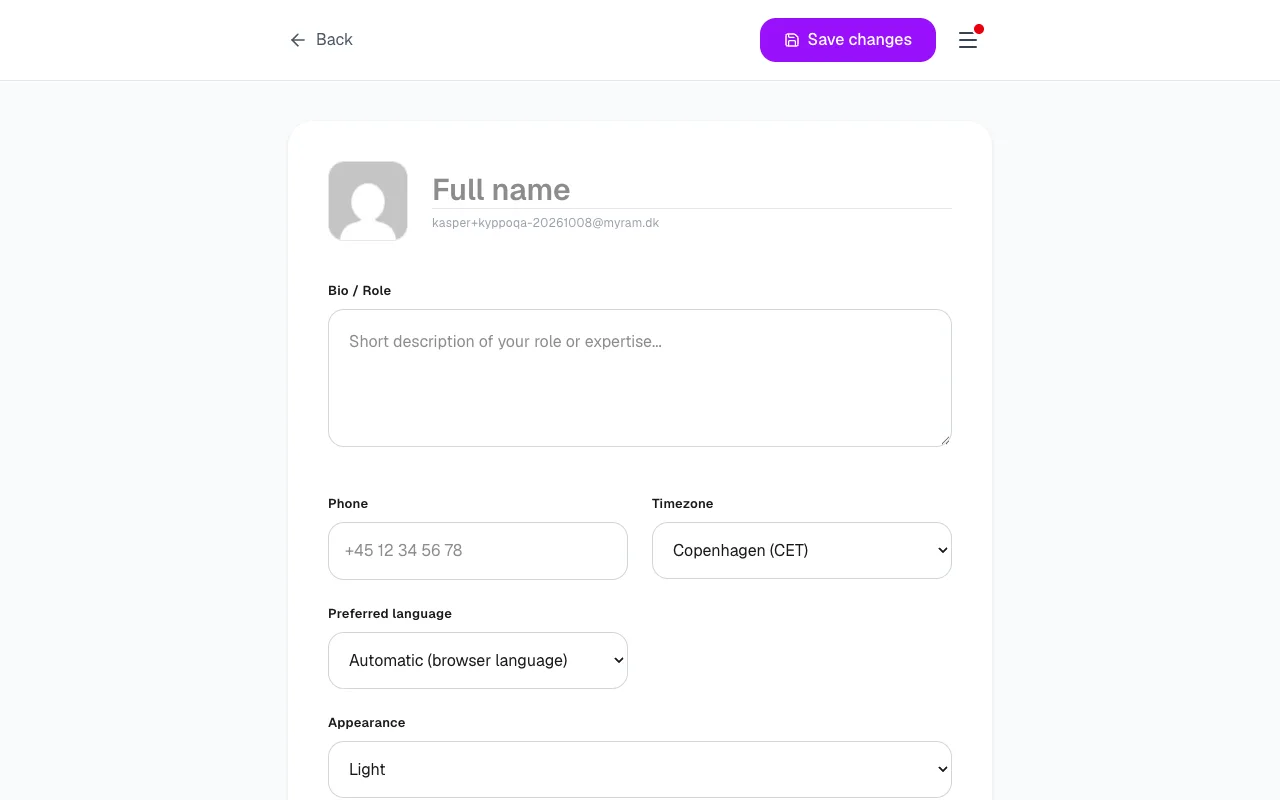
On a paid plan, open Profile → Notifications, enable Slack, and paste an Incoming Webhook URL (from Slack’s Incoming Webhooks). Save. New inbox items that match your notification types can post to that channel — usually a private one for you.
This is your alert stream, not the team board. Free plans keep notifications in the app only; upgrade on /billing to unlock Slack delivery.
Project channel
A project can also post to a shared Slack channel so the team sees activity in one place. When project Slack is connected, typical events include:
- New tickets: Someone created work on the board.
- Status changes: A ticket moved in the flow.
- Comments: Conversation landed on a ticket.
- Attachments: A file was added to a ticket.
Project Slack is separate from your personal webhook. It follows the project owner’s paid entitlement. Setup lives with project integrations when your workspace has it enabled — ask an owner if you are unsure whether the channel is connected.
Slash command /kyppo
Where the Kyppo Slack app is installed, type /kyppo in any channel or DM. Replies are ephemeral (only you see them). Your Slack email should match your Kyppo account so access lines up with the projects you can open.
- /kyppo PROJ-12: Look up a ticket by key and get a short summary with a link.
- /kyppo search …: Search tickets you can access and skim the hits.
- /kyppo help: Show the short command cheat sheet.