Getting started
Last updated: October 23, 2026
This guide is for teams that put Kyppo in the middle of AI agents, bots and people. The goal is simple: one place where the work is visible to everyone.
Think hub and spokes
Kyppo is the hub. Agents, bots and humans are the spokes. When everything goes through tickets, work becomes documentable, traceable and interactive — including for people who are not writing the code.
Five steps
Create an account and a project
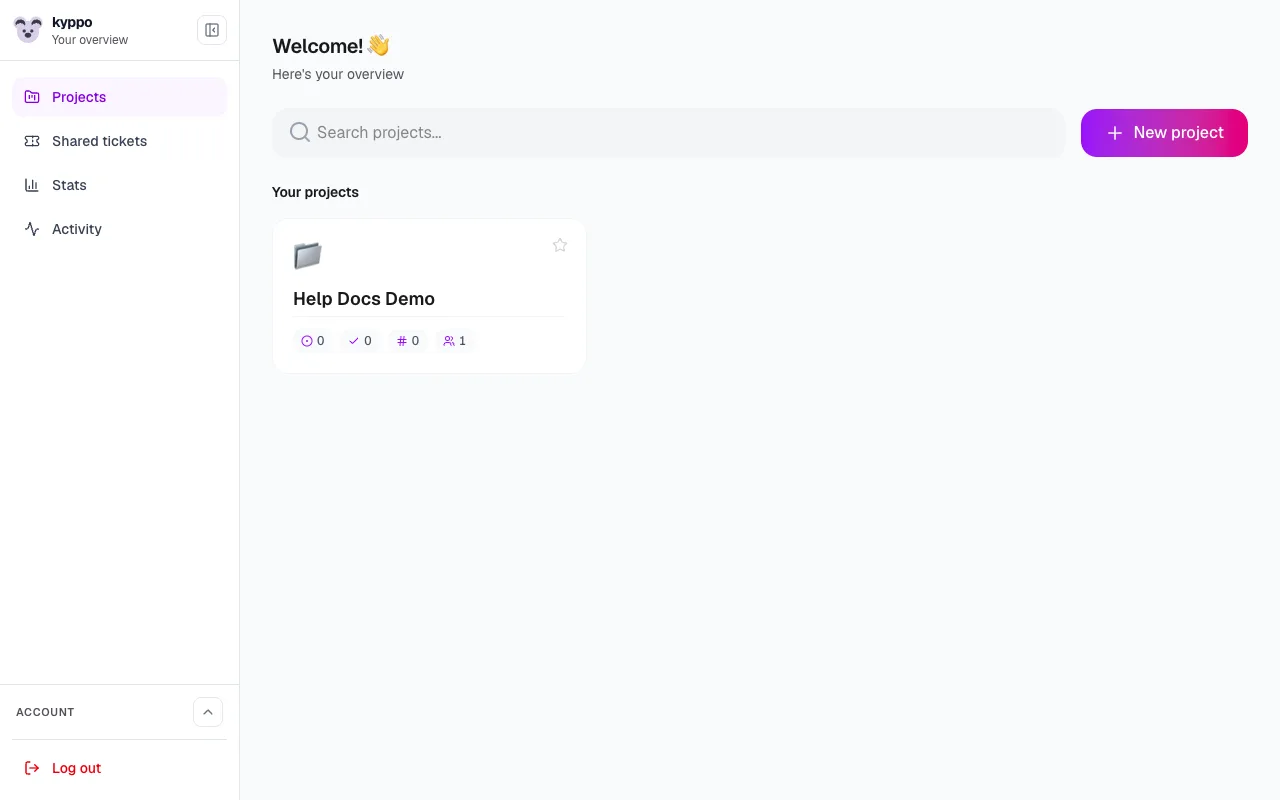
Sign up with Google, X or email. Confirm your email if asked. From the dashboard, create your first project — that is the space tickets belong to.
Make tickets your work orders
Each task is a ticket: title, status, optional description and comments. Use the same format whether you, an agent or a bot does the work. Then everyone can follow along.
Invite people — and give agents access
Invite colleagues in project settings (email, 14-day link). For AI agents and bots: use personal MCP tokens or your existing API — they work on the same tickets, within the access you grant.
Pick the right view for the job
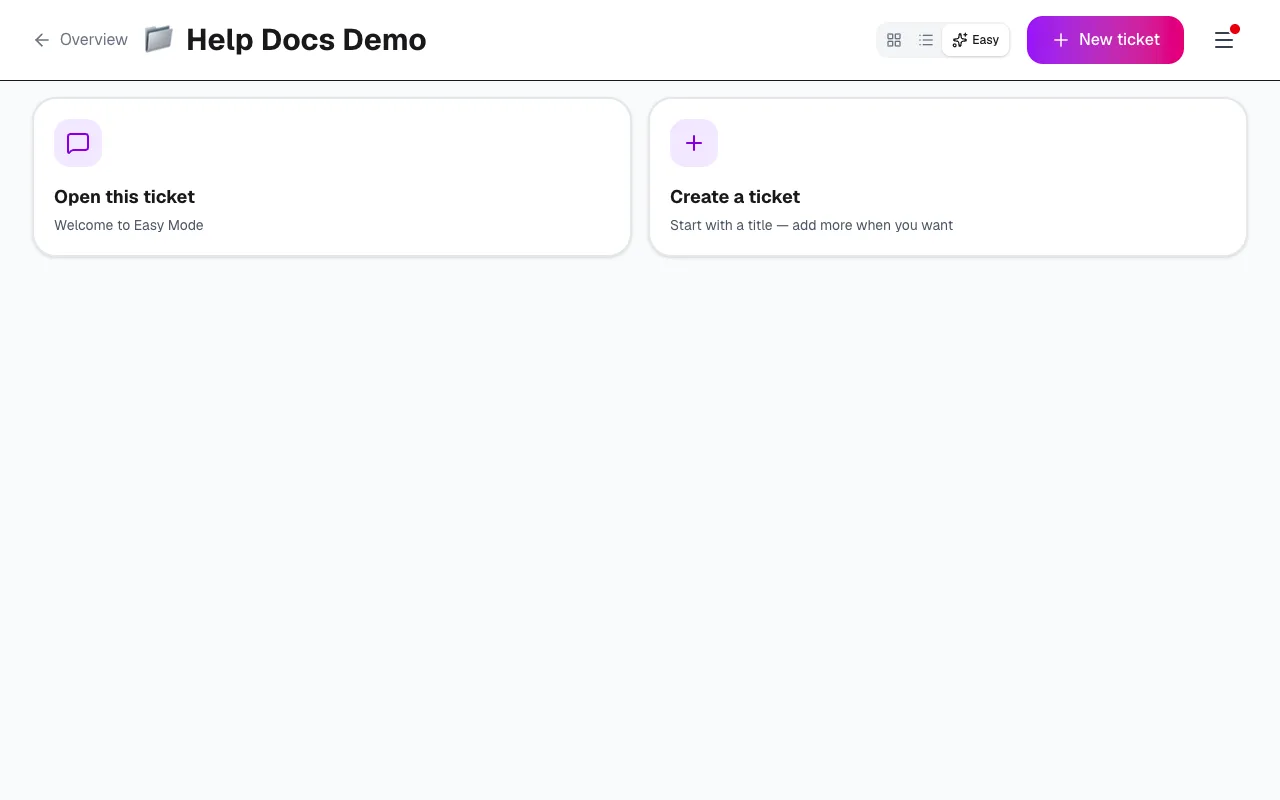
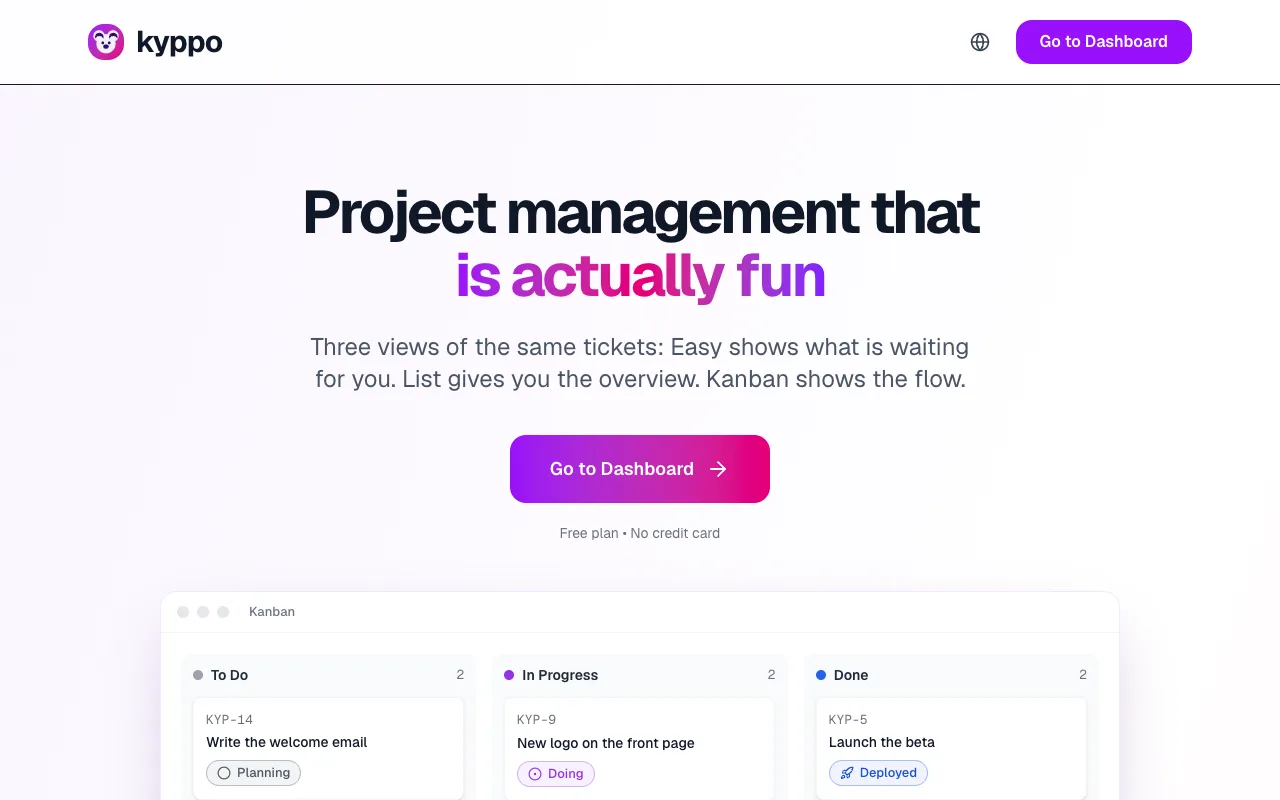
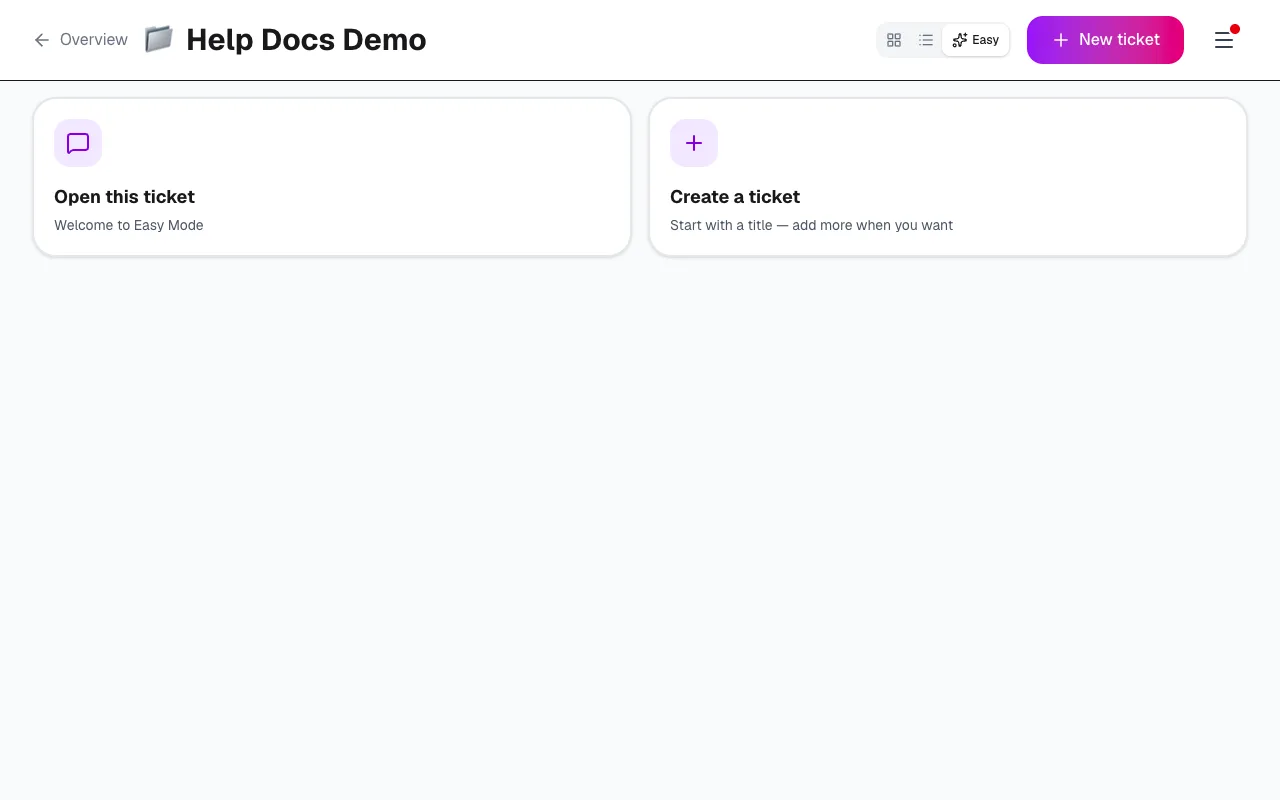
Easy: do what is waiting for you. List: build and edit many tickets. Kanban: agree on order and flow. Switch freely — it is the same tickets.
Keep history in Kyppo
Let decisions, status changes and comments live on the ticket — not only in a chat with an agent. Then design, PM and stakeholders can find what happened without reading code.
Agile — recommended, not required
Kyppo thinks you should work agile, and supports it with status, mode and the three views. You do not need a strict ceremony setup. Use what helps; skip what does not.
Next steps
Open /dashboard, create a ticket, and invite one person — or point an agent at the same ticket. Dig deeper with the guides below.